Getting Started
Wiring Guides & Controller Settings
ย
This guide covers wiring and configuring both StarEFX Pulse panels and an LED strip running from the same controller. The panels connect to Output #1 and the LED strip connects to Output #2, allowing you to control them together or independently.
Power Distribution (StarEFX panels)
Up to 20 panels โ single PSU
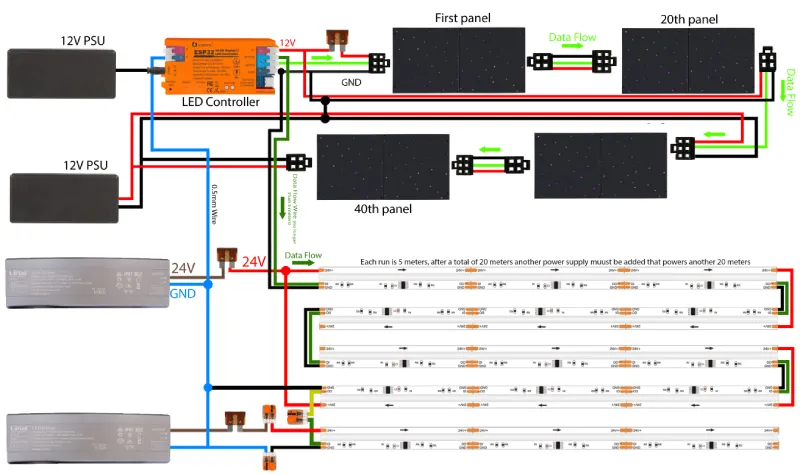
Connect PSU 1 to the LED controller and run a second power wire to the last panel. This feeds power into both ends of the chain, ensuring consistent voltage across the full run.
More than 20 panels โ add a second PSU
With a single PSU the voltage will drop over a long run, so a second PSU is needed from panel 21 onwards.
The first PSU continues to power the first half of the run, and the second PSU takes over from panel 21 to the last panel.
The grounds from both PSUs must be joined together at one point โ at the controller or anywhere convenient on the installation.
ย
Data Connection
Controller โ Panel 0
Panel 0 is the start of the chain. Its input connector plugs into the output of the LED controller. The data signal, positive voltage, and ground all leave the controller together and enter panel 0 first.
Panel โ Panel
As each panel is mounted, plug the output link cable from the previous panel into the input connector of the new panel. Follow the numbered installation order โ panel 0 to panel 1, panel 1 to panel 2, and so on. Do not skip panels or connect them out of order.
ย
Power Distribution (LED strip)
Each LED strip run is 5 metres. PSU 1 powers the first 20m (4 strips) and if you need to extend beyond 20m, a second PSU is added to power the next 20m (another 4 strips).
Before anything else, connect a 0.5mmยฒ wire from the GND on PSU 1 to the GND on PSU 2 โ this links the two power supplies together. Also run a ground wire from PSU 2 back to the GND on the controller. If you skip these ground connections your lights will flicker or not work.
First 20m (Strips 1โ4)
Connect power and ground from PSU 1 to the ESP32 controller. Run a power and ground wire from the fuse to the start of strip 1. At the 10m mark (between strip 2 and 3), cut the red (+) wire. Run a second power and ground wire from the fuse all the way to the end of strip 4 โ this powers strips 3 and 4 from the back end.
Result: PSU 1 powers the first 10m from the front and the second 10m from the back.
Extending Beyond 20m (Strips 5โ8)
Repeat the same process with PSU 2 starting from strip 5. At the 30m mark (between strip 6 and 7), cut the red (+) wire. Run a second power and ground wire to the end of strip 8.
Result: PSU 2 powers strips 5โ8 the same way.
Data Wire
Run the green data wire from the controller to the start of strip 1, then continue it through each strip. At the join between strip 4 and 5, strip the wire sleeves and connect them using a Wago clip.
Images
ย
Controller Setupย
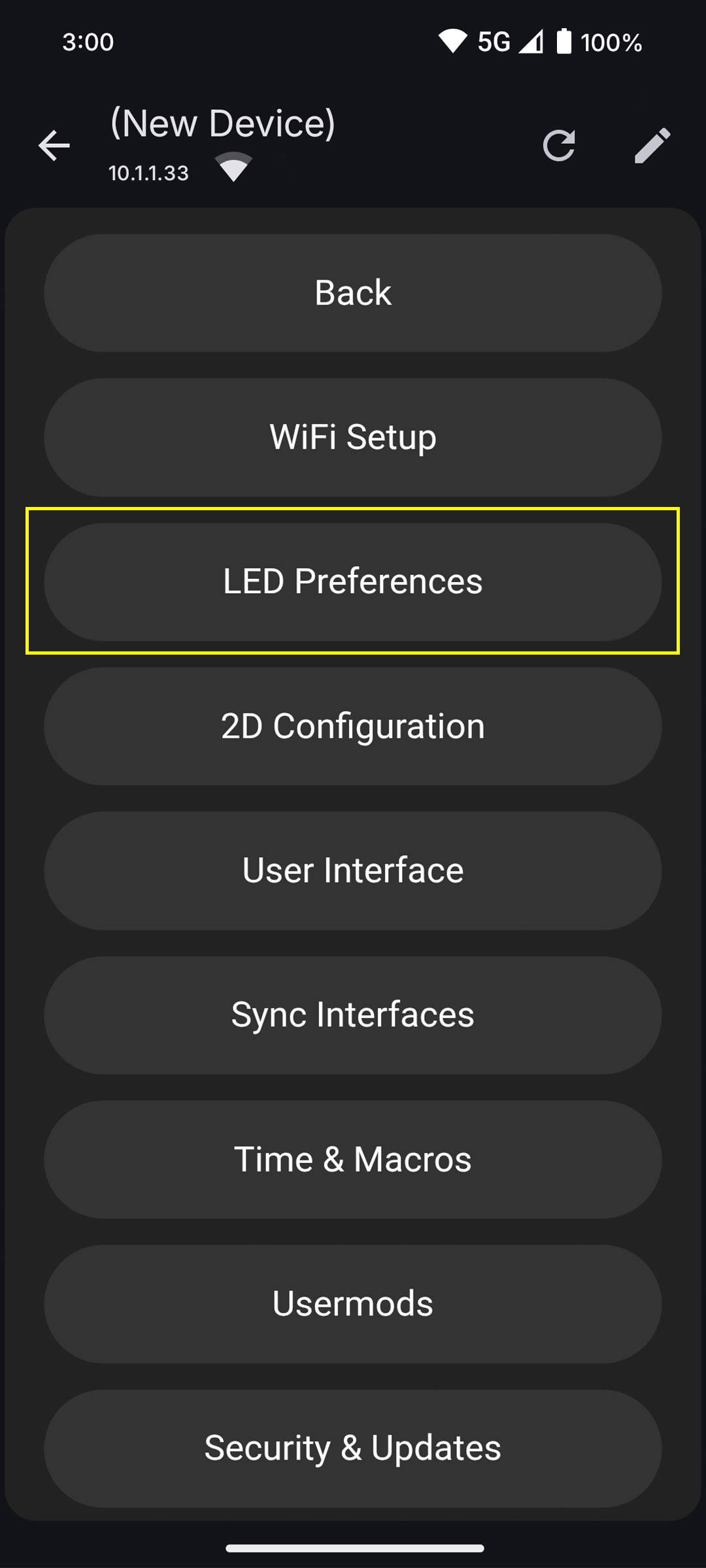
In the app or web UI, go to Config (gear icon) โ LED Preferences. Under the Hardware Setup section find LED Outputs and configure the following:
- Output #1 โ StarEFX Pulse Panels
- Chipset = TM1814
- Data GPIO = 2
Multiply the number of panels by 2 to get your LED length. For example, 10 panels = 10 ร 2 = 20. Enter this value under Output #1 โ Length.
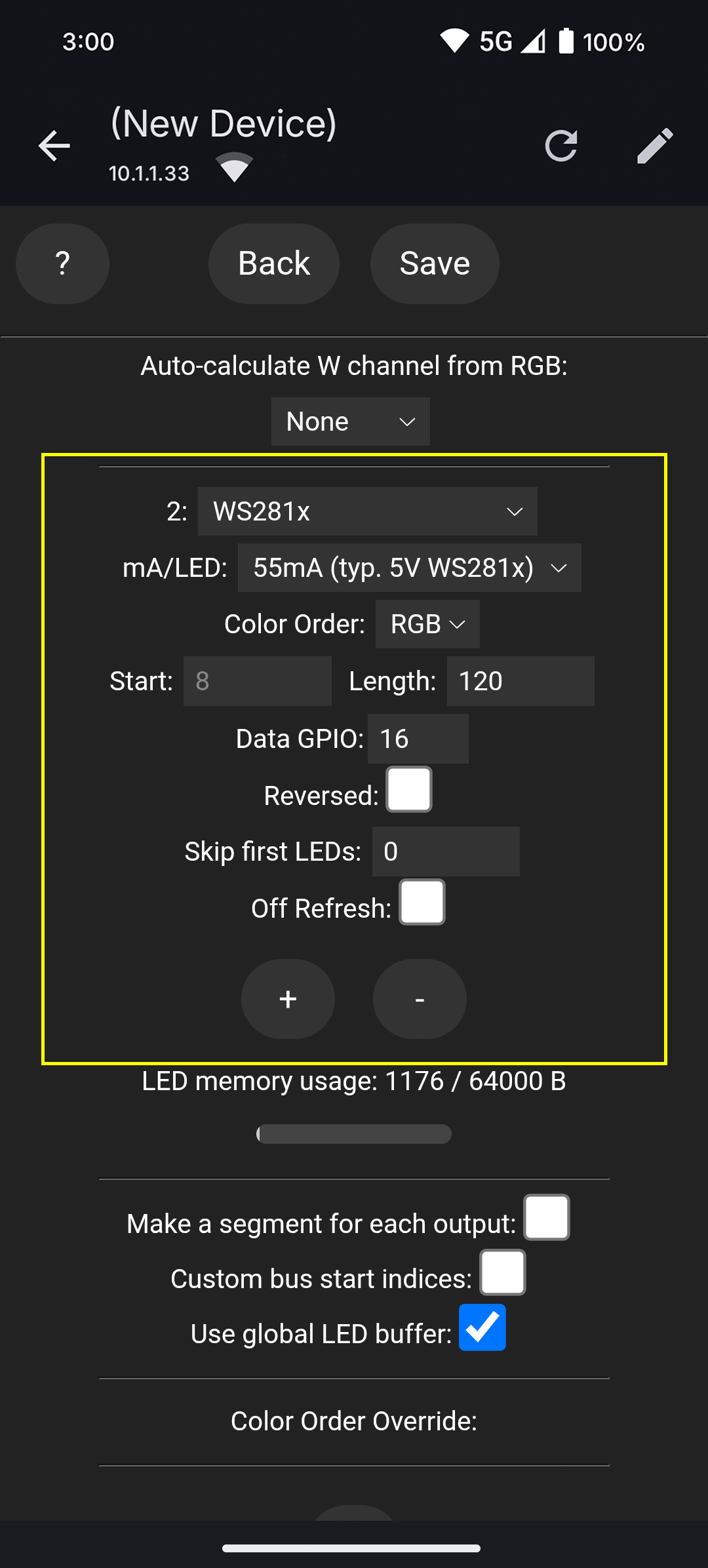
To add the LED strip, tap the + symbol just below Output #1 to add a second output and configure the following:
- Output #2 โ LED strip
- Chipset = WS281x
- Data GPIO = 16
To find your LED length, divide the total strip length in mm by 41.666. For example, a 20m strip = 20,000mm รท 41.666 = 480 pixels. Enter this value under Output #2 โ Length.
Note: every 5m strip has 120 pixels.
Once done, click Save at the top of the page.
If only part of the strip lights up, the length value is too short โ increase it until the full strip is covered.
ย
Segments Check
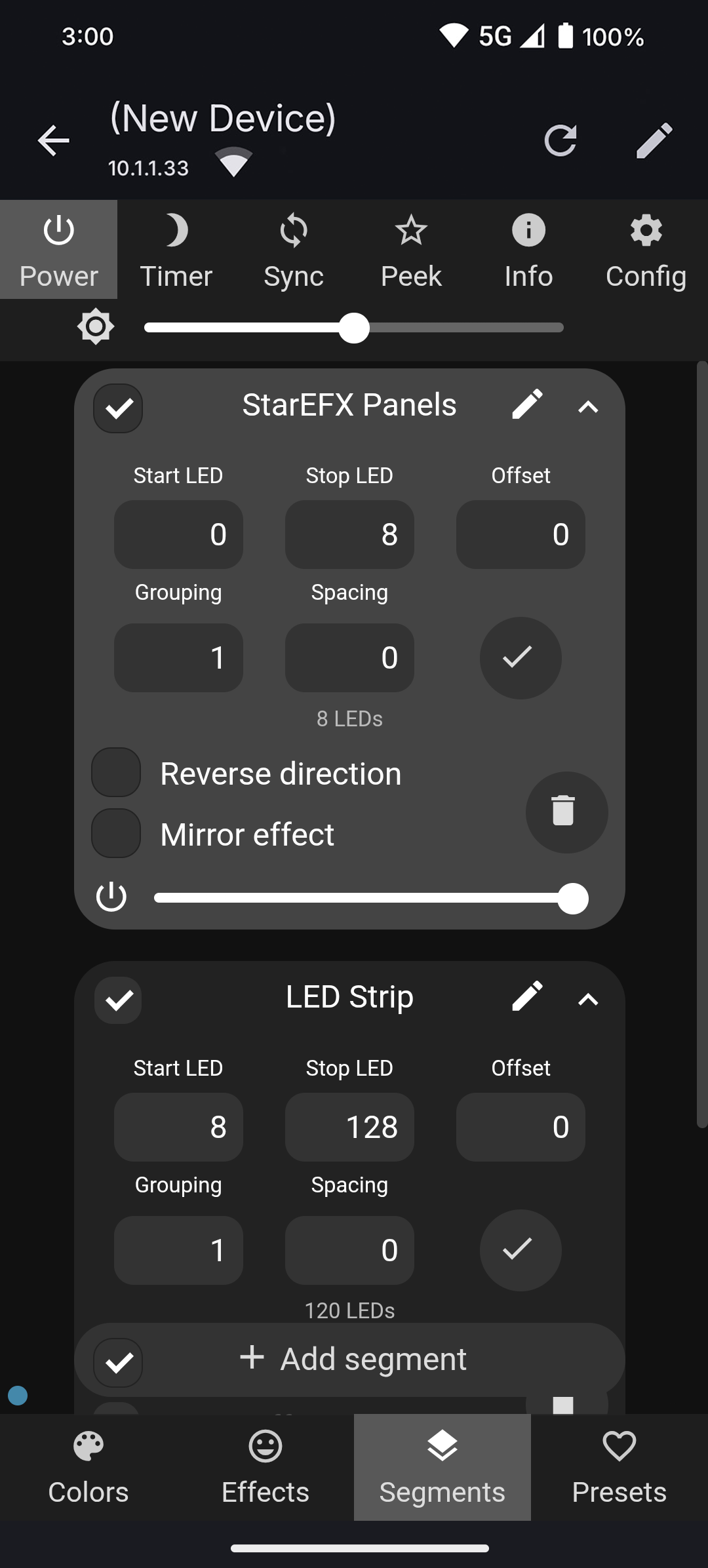
Go to the Segments tab and click the dropdown on Segment 0 to expand it.
To run panels and LED strip together (same effect on both):
- Segment 0
- Start LED = 0
- Stop LED = total combined LED count from Output #1 and #2 (shown at the top of LED Preferences)
Click the tick to save.
To control panels and LED strip independently (different effects on each):
Click + Add Segment to create a second segment, then set:
- Segment 0 (Panels)
- Start LED = 0
- Stop LED = your panel LED count (e.g. 20 for 10 panels)
- Segment 1 (LED Strip)
- Start LED = your panel LED count (e.g. 20)
- Stop LED = your panel LED count + strip LED count (e.g. 20 + 480 = 500)
Click the tick on each segment to save. You can then select each segment separately and apply a different effect to each.
ย
This guide covers wiring and configuring both StarEFX Pulse panels and an LED strip running from the same controller. The panels connect to Output #1 and the LED strip connects to Output #2, allowing you to control them together or independently.
Power Distribution (StarEFX panels)
Up to 20 panels โ single PSU
Connect PSU 1 to the LED controller and run a second power wire to the last panel. This feeds power into both ends of the chain, ensuring consistent voltage across the full run.
More than 20 panels โ add a second PSU
With a single PSU the voltage will drop over a long run, so a second PSU is needed from panel 21 onwards.
The first PSU continues to power the first half of the run, and the second PSU takes over from panel 21 to the last panel.
The grounds from both PSUs must be joined together at one point โ at the controller or anywhere convenient on the installation.
ย
Data Connection
Controller โ Panel 0
Panel 0 is the start of the chain. Its input connector plugs into the output of the LED controller. The data signal, positive voltage, and ground all leave the controller together and enter panel 0 first.
Panel โ Panel
As each panel is mounted, plug the output link cable from the previous panel into the input connector of the new panel. Follow the numbered installation order โ panel 0 to panel 1, panel 1 to panel 2, and so on. Do not skip panels or connect them out of order.
ย
Power Distribution (LED strip)
Each LED strip run is 5 metres. PSU 1 powers the first 20m (4 strips) and if you need to extend beyond 20m, a second PSU is added to power the next 20m (another 4 strips).
Before anything else, connect a 0.5mmยฒ wire from the GND on PSU 1 to the GND on PSU 2 โ this links the two power supplies together. Also run a ground wire from PSU 2 back to the GND on the controller. If you skip these ground connections your lights will flicker or not work.
First 20m (Strips 1โ4)
Connect power and ground from PSU 1 to the ESP32 controller. Run a power and ground wire from the fuse to the start of strip 1. At the 10m mark (between strip 2 and 3), cut the red (+) wire. Run a second power and ground wire from the fuse all the way to the end of strip 4 โ this powers strips 3 and 4 from the back end.
Result: PSU 1 powers the first 10m from the front and the second 10m from the back.
Extending Beyond 20m (Strips 5โ8)
Repeat the same process with PSU 2 starting from strip 5. At the 30m mark (between strip 6 and 7), cut the red (+) wire. Run a second power and ground wire to the end of strip 8.
Result: PSU 2 powers strips 5โ8 the same way.
Data Wire
Run the green data wire from the controller to the start of strip 1, then continue it through each strip. At the join between strip 4 and 5, strip the wire sleeves and connect them using a Wago clip.
ย
Controller Setupย
In the app or web UI, go to Config (gear icon) โ LED Preferences. Under the Hardware Setup section find LED Outputs and configure the following:
- Output #1 โ StarEFX Pulse Panels
- Chipset = TM1814
- Data GPIO = 2
Multiply the number of panels by 8 to get your LED length. For example, 10 panels = 10 ร 8 =80. Enter this value under Output #1 โ Length.
To add the LED strip, tap the + symbol just below Output #1 to add a second output and configure the following:
- Output #2 โ LED strip
- Chipset = WS281x
- Data GPIO = 16
To find your LED length, divide the total strip length in mm by 41.666. For example, a 20m strip = 20,000mm รท 41.666 = 480 pixels. Enter this value under Output #2 โ Length.
Note: every 5m strip has 120 pixels.
Once done, click Save at the top of the page.
If only part of the strip lights up, the length value is too short โ increase it until the full strip is covered.
ย
Segments Check
Go to the Segments tab and click the dropdown on Segment 0 to expand it.
To run panels and LED strip together (same effect on both):
- Segment 0
- Start LED = 0
- Stop LED = total combined LED count from Output #1 and #2 (shown at the top of LED Preferences)
Click the tick to save.
To control panels and LED strip independently (different effects on each):
Click + Add Segment to create a second segment, then set:
- Segment 0 (Panels)
- Start LED = 0
- Stop LED = your panel LED count (e.g. 80 for 10 panels)
- Segment 1 (LED Strip)
- Start LED = your panel LED count (e.g. 80)
- Stop LED = your panel LED count + strip LED count (e.g. 80 + 480 = 560)
Click the tick on each segment to save. You can then select each segment separately and apply a different effect to each.